
Bluelink R3 Software upgrade
We have released a new software upgrade for the Bluelink R3 (the Bluelink with the volume wheel.The following changes have been made:…
Read more →News, stories and insights from the world of Avee.

What do you do if the Avee does not work like expected? Most headsets and even Avees have their secrets, and here we tell you how to deal with them.
Most issues can be solved by yourself by using some common sense and adding a pinch of patience.
In this article, we will discuss general issues first and then go into the specialties or secrets for each and every headset we support.
And: this article can be interesting to read even if you do not experience any issues with your headset and Avee Aviation microphone!
General
An aviation microphone system contains two independent parts: the microphone system and the speaker system.
In the Avee aviation microphone, circuitry/electronics for these two parts are contained in the Avee microphone plastic housing.
The Avee plastic housing is designed to fit each specific headset and is held securely in place to the headset with a combination of the Avee magnet stripe and the headset audio connector.
The headset with the Avee aviation microphone housing is then connected to the aircraft:
The microphone
For the microphone to work – it needs power.
This power is referred to as the bias voltage (help voltage) and is always fed to the headset from the aircraft.
If the bias voltage for some reason is not reaching the Avee aviation microphone and the headset, the Avee microphone will simply not work:
Troubleshooting – no red light
Reasons for not getting a bias voltage and stable led red light on the Avee can be the following – and we start with the obvious ones:
Troubleshooting – red light but no sound in your headset
The red light on the bottom side of the Avee tells us that the Avee Aviation Microphone gets the bias voltage from the aircraft.
If the copilot can not hear you and you can not hear yourself, we need to verify that sound goes out from the Avee microphone:
The co-pilot can hear you, but you can not hear yourself
The most typical reason for this to happen is simply that the audio is turned up on the headset.
The headsets we support behave differently when it comes to adjusting the volume and resetting the volume level. Each headset we support is therefore covered individually, but before we do that we will mention one common error: Double Magnets.
Double magnets
One magnet stripe- one magnet stripe only – should be mounted on the headset. There should not be a loose magnet stripe on the Avee Aviation Microphone.
Using two magnet stripes prevents the audio connector from going into the headset, and hence; no audio in the headset.
Setting the volume – the Bose® QC35, Sony® WH1000XM3,XM4 and XM5
The volume on the QC35 and XM3-5 is set from the Avee Aviation microphone.
Turn the volume knob on the Avee fully clockwise for maks sound.
You get almost normal sound raised to maximum volume in the headset even when the battery in these headsets is dead or ANR is off.
QC35 internal failure
We have seen a handful of QC35 that have an internal audio connector failure.
In this case the QC35 reports it is trying to connect via Bluetooth to the product it was last connected to even when the Avee is plugged in.
In case you experience this problem, verify that the problem is present even when using the QC35 with a non-Avee product: the cable with a 3.5mm audio connector the headset was supplied with originally. When plugging in this cable, the headset is not detecting this and will try to connect via Bluetooth instead. Wiggle the connector to provoke this behavior.
The only solution to get rid of this exact problem is to repair/replace the headset.
Setting the volume – Bose® QC45
The volume on the QC45 is set with the +/- keys on the right earcup even when the Avee is plugged in.
The QC45 has a feature (read bug) that turns the volume on the headset down to a minimum if you unplug the Avee when the headset ANR is switched on.
You have to manually adjust the headset volume to get the audio back.
The only way to prevent this feature from occurring (as far as we know), is to switch the the QC45 off before you remove the Avee from the headset.
You get close to normal sound raised to maximum volume in the headset even when the QC45 battery is dead, or ANR is off.
Setting the volume – Bose® 700
The volume on the Bose® 700 is set with a swiping vertical motion (see headset manual) for increasing and decreasing volume levels.
Swiping up increases volume, while swiping down decreases volume.
You get close to the headset’s normal /max volume sound when the B700 battery is dead, or ANR is off.
Luckily: the Bose® 700 lacks the QC45 feature turning down the volume to a minimum when powered off with Avee plugged in.
Sony® XM4 and XM5: Muted speakers when you talk
This feature from Sony® is called Speak to Chat and simply mutes your headset speakers when you start talking.
It is a really annoying function until we understand what is happening.
You an turn on and off the Speak to chat function by:
Thanks Adrien!
Sound in one ear only
Sound in the left ear only is most likely caused by the fact that the Avee aviation microphone is set to stereo, while the aircraft is mono only.
Set the Avee to MONO to fix.
Please note the majority of commercial and GA aircrafts are mono aircrafts only. The mono audio signal can be wired to both the left & right channels, however – giving an impression that the aircraft is fully stereo.
Please note that when you are using the BlueLink, the Avee will adjust automatically so you get stereo Bluetooth music independant of the setting of the mono/stereo switch on the Avee housing.
Audio right ear only or sporadic left or right ear only
Most likely a cable error or an error on the Avee microphone – or even headset.
Test the headset with the non-Avee supplied cable that came with the headset. Wiggle connector to provoke the problem. if the same issue occur the problem is inside the headset.
Else: contact us on Support.
You can hear yourself – but the co-pilot can not hear you.
This is most likely caused by an internal aircraft setting error on GA aircrafts.
Check isolate switch on intercom.
You can not hear & see the co-pilot
This is a typical situation on single pilot aircraft. Nothing to worry about.
Extremely noisy output from the Avee
This can be caused by:
Headset echo / latency
The echo problem – or rather: the latency or delay issue has been reported on the Bose®QC45 and Bose® 700 only.
The reports state that there seems to be a slight delay between the audio in the left- and right earcup under certain conditions.
We have not found a real fix for these issues, but here are some facts:
Final words
If you still experience problems: we are here for you.
Give us a call – or send us an email saying you have read this article but still do not see the light!
Happy landings !
The Avee Team
We have released a new software upgrade for the Bluelink R3 (the Bluelink with the volume wheel.The following changes have been made:…
Read more →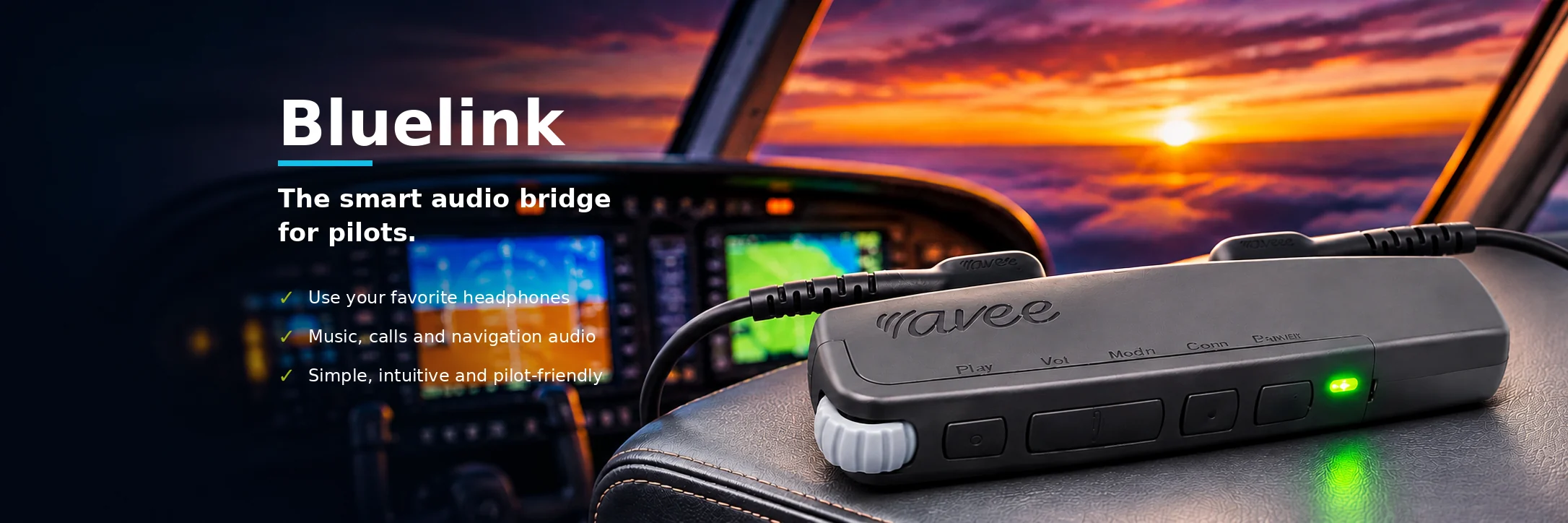
Happy New Year to all of you! Thank you for all your support throughout 2025 !All those wonderful (and long) phone conversations…
Read more →The Avee-year 2025 was extremely busy for us. We see a steady increase in the number of sold units, and we are…
Read more →Between shuffling huge amounts of snow in Preisssac ( Quebec, Canada) and eating poutine (the most ‘interesting’ Quebecois meal (see picture (if…
Read more →Since the Sony WH1000XM6 (XM6 for short) came this summer, we have wanted to make an adapter to fit it. Unfortunately, we…
Read more →We are making videos! We have finally come to the point where we wanted to be some years ago: having enough time…
Read more →Read more about the Avee Bluelink R3 here !In full production – and we are working as fast as we can to…
Read more →
SHIPMENTS TO THE USA August the 29th 2025, the threshold of USD 800 before adding sales tax & tariffs , was removed.…
Read more →We are now up and running with tracked surface mail shipping to all European countries, including Spain and Portugal (we initially had…
Read more →